
Making text summaries offline using a local LLM part B
AnythingLLM: An interface for LLM models to do anything
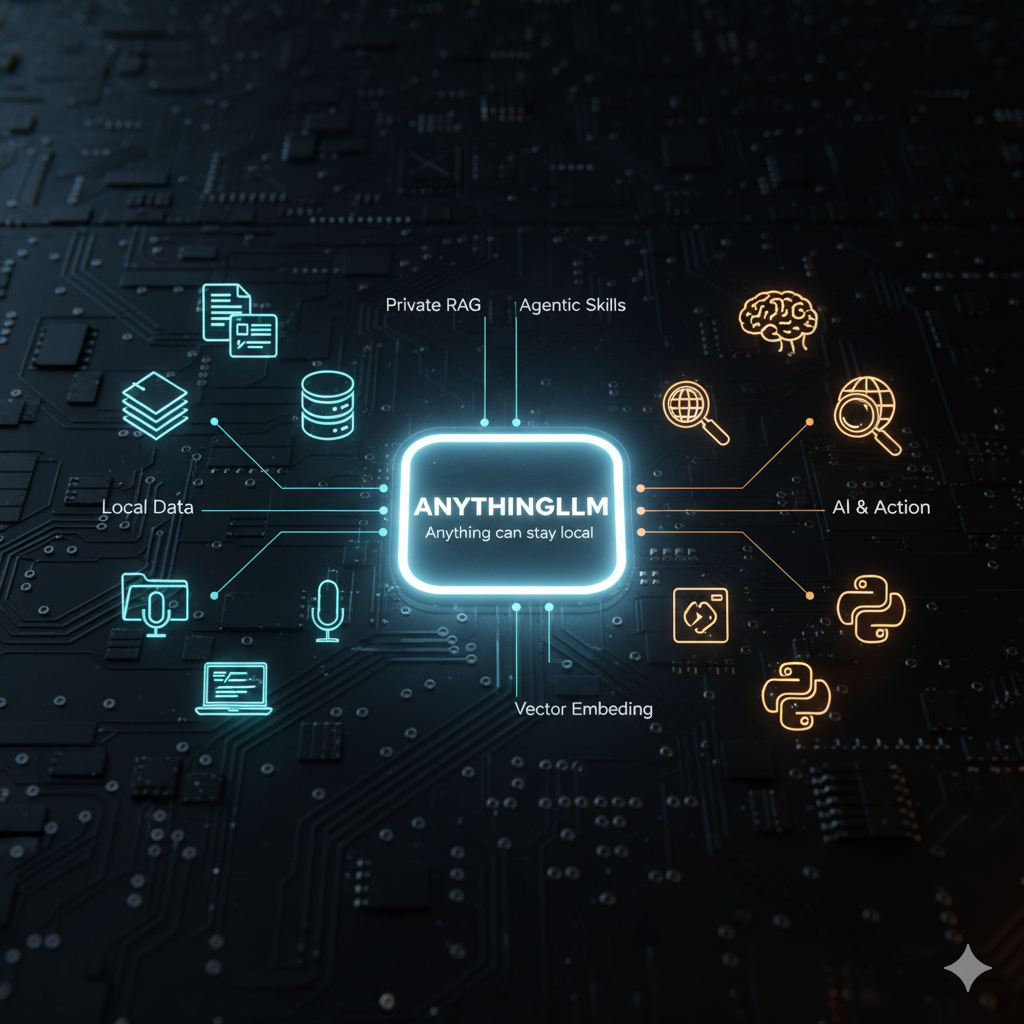
Description of the software
AnythingLLM is another interface to use LLM models that can be used to make summaries. It features many other tools that basically connect documents with this LLM interface.
It has a document processor that can be used for all kinds of documents: text files, CSVs, spreadsheets, audio files, but I think, not videos...
It also has a vector database manager. In this context, a vector database stores the mathematical meaning of documents, allowing the AI to retrieve relevant context based on concepts rather than just keywords.
(Tested on version 1.9.1.0)
AnythingLLM allows you to work 100% on your local computer: in function of your settings, your documents don't have to be sent to a cloud server to be processed. AnythingLLM can serve as a private knowledge management system.
AnythingLLM allows you numerous possibilities to connect to your favorite LLM model:
AnythingLLM (local, works with a gguf file of your favorite model), openAI (need an API key), Anthropic, Gemini, NVIDIA NIM, LM Studio (local), Llama (local), Mistral, Groq, Huggingface, Oobabooga Web UI (local), KoboldCPP, DeekSeek, xAI, and many others that I didnt list because I never heard about them.
With AnythingLLM, you can use and code AI agents: for example, they can connect to SQL databases, do web searches, and save files—all based on text input in the AI chat.
You can also code your own agents (thanks to Node.js) and, via the chat interface, control your computer (you can make the interface execute Python files with parameters, so that's not exaggerated). If you are interested in custom agents, feel free to have a look at this webpage (disable your anti-popup to access the webpage). It features some agents that you can use yourself. I probably have enough material to make a tutorial about these AI agents myself. (If you ask your favorite online AI model to code an agent for you, you will see that it is not that easy.)
These kinds of agents are very trendy, but I haven't decided yet what I can use them for.
I find very cool that you can do that with a software that you can use for free and without any subscription.
Finally, the last notable feature of AnythingLLM (which I haven't tested myself) is that you can use AnythingLLM as an AI helper for a webpage. I didn't test this feature because I am using the desktop version of the software, and to use this feature, you need the Docker version.
This feature is explained here.
And this is the dedicated page to install the docker version of the software.
I dont necesserally want to make a 2nd version of the official documentation of the software: so, now I will focus on what I wanted to explain (making summaries) and on some aspects of the software that weren't so obvious to understand.
How to make the software make a decent summary of something?
To do my tests I used a version of 1989 of the book "Rules for Radicals" from Saul Alinsky.
I do not have the distribution rights for this book, so please use your own file or test this with a different text.
Using the following configuration (Agent skills disabled, Max Tokens = 4000, Temperature = 0.7, Model = llama3.2:latest), if I input this Prompt:
'Provide a summary of the text. It should be approximately 10% of the original length. Be concise, yet ensure you cover every aspect of the book.'
I got a text of about 230 words, which is far less than I expected.
However, asking for a specific word range produces a longer text. For example:
eg: “Summarize Saul Alinsky’s ‘Rules for Radicals’ in 5000 words but not less, condensing key concepts and ideas into a concise narrative.”
But this still only results in a text of about 1500 words.
Since I felt limited by the length, I changed the 'Max Tokens' setting to 16,000.
This seemed logical but was not a definitive solution, as it did not increase the actual length of the answers.
LLM cannot count and it seems like small models like llama3.2 may run out of things to say...
I got the best results when I asked for a summary of 2000 to 2500 words for each chapter:
"Make a summary of the chapter 2 in 2000 to 2500 words"
Achieving these results may also requires fine-tuning the underlying parameters.
For instance, the Temperature setting must be adapted to the specific model; if the model begins to hallucinate, the temperature should be reduced, though this assumes the user can recognize when the AI is deviating from the facts.
Ultimately, the quality of your output is also a direct function of the model being used.
In AnythingLLM, there are two types of settings menus where you can adjust configurations:
- Workspace Settings: Accessible by clicking the gear icon next to the workspace name;
this allows you to fine-tune parameters related to vector management and specific document handling.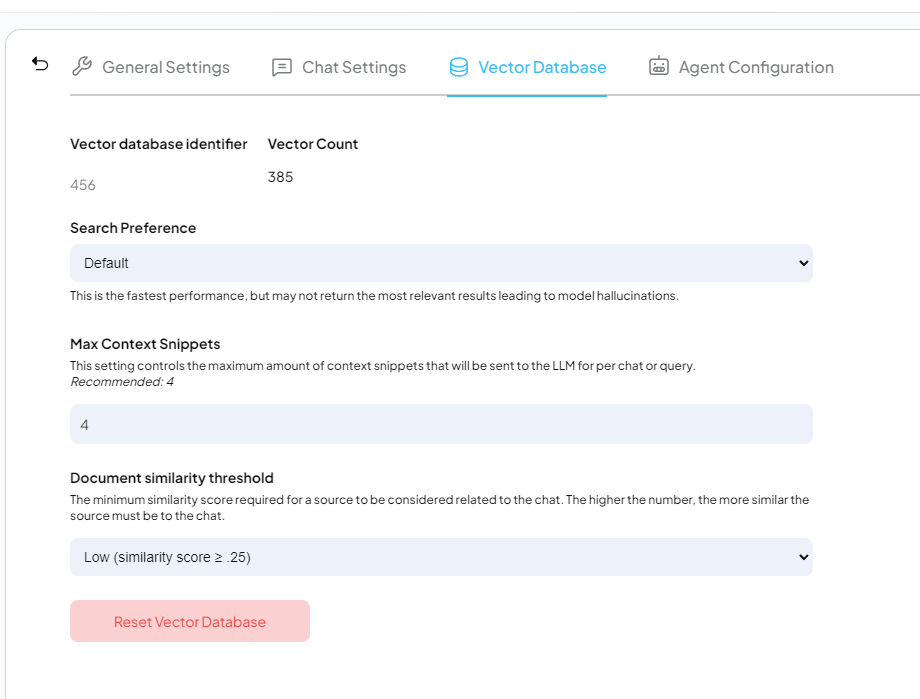
-Instance Settings: Accessible via the wrench icon at the lower-left of the screen, which controls the global environment and system-wide configurations.
Since it took me 5 minutes to understand that I had to click again to return to the workspaces where the chats are, pay attention to the lower left of the screenshot.
In the instance settings (see above) you have 2 interesting agents for summaries:
- The RAG one, that is described like that:
"Allow the agent to leverage your local documents to answer a query or ask the agent to "remember" pieces of content for long-term memory retrieval."
But even disabled you can still ask questions to your documents and the software will answer.
- "View & summarize documents": that is described as "Allow the agent to list and summarize the content of workspace files currently embedded."
But even disabled, it will still make summaries.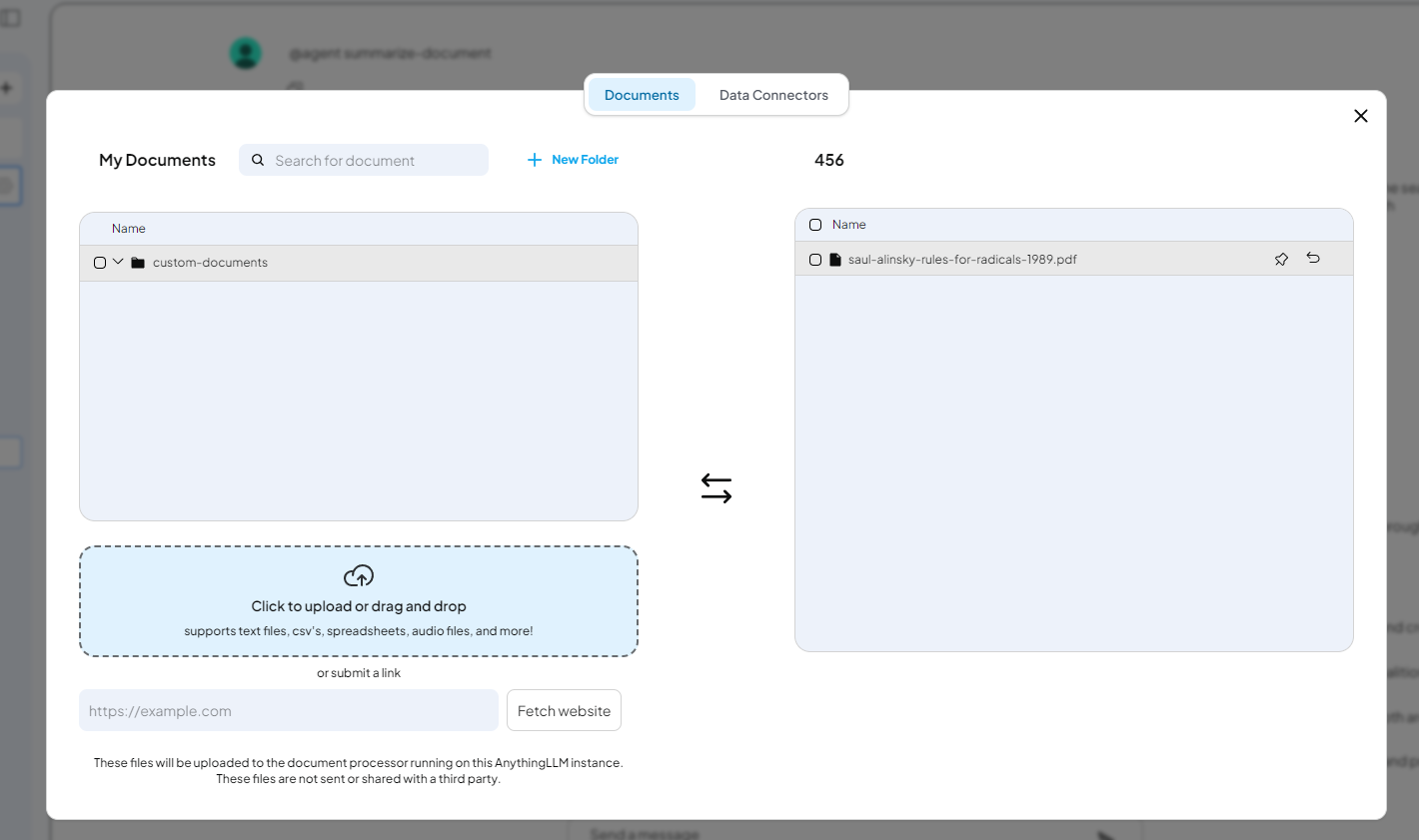
To actually use an agent, you need to use the syntax '@agent' before your query.
Usually, I add the name of the agent that I want to use. The 'summarize-document' agent was the only one that gave an interesting result. Then I add the name of the document.
This gives: @agent summarize-document Saul Alinsky’s “Rules for Radicals” as provided in the pdf
Note that I added the document to the workspace rather than the chat.
I find the results with the agent to be slightly better, though it wasn't that impressive.
Ultimately, it is the quality of your prompts that determines whether the results are good or bad.
Can you use the software to make video summaries?
As mentioned in previous messages, there are several ways to generate a video summary: you can summarize the transcript (the spoken text), utilize OCR (scanning frames for text), or analyze the frames and the visual relationships between frames. MiniCPM-V 4.5 is capable of this, and since Ollama provides MiniCPM-V and AnythingLLM can connect to Ollama, one might ask: can AnythingLLM handle videos?
If you load a video into the chat window, AnythingLLM will report that it found no text content.
The result is the same if you load the video from a workspace.
Even if you set the default model to MiniCPM-V 4.5 via Ollama, the behavior remains unchanged.
Note that in the workspace menu, if you go to the tab "data connectors", it will allow you to use transcript of YouTube videos.
So, for the moment, anythingLLM is only able to handle transcripts of video and doesn't seem able to handle the frames of videos.
Still, AnythingLLM can handle pictures if you use a model that can handle them.
How to use browsers with AnythingLLM?
There are 2 kind of browsers that you can use with AnythingLLM:
-1: The Browser tool, tool accessible with the instance settings menu.
Then click on "Open Private Browser" to use it: If a webpage uses identification or a login cookie, and you log in within the browser and then add a URL to the workspace (see above), instead of seeing what you would see as an unlogged user, you will see the page as an identified user.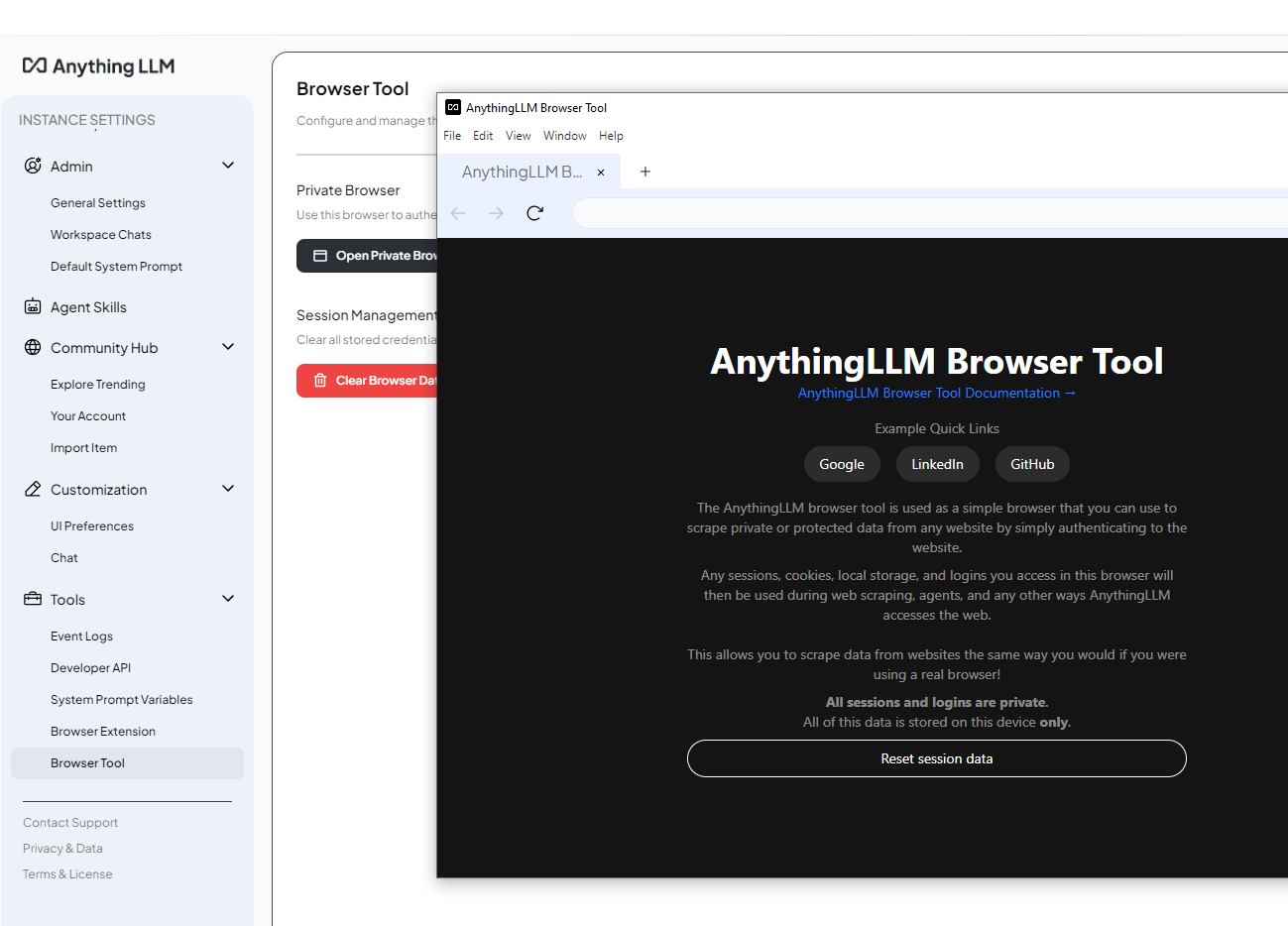
After that, you still need to add the website as a document for the workspace (tested) or use the website scraper agent (remember the @agent), (not tested).
-2: The Browser Extension
This is an extension that you have to add to an external browser. At the moment, it only works with Chrome.
I suggest you find the extension using this page.
Once this extention is installed in your browser, you need to click on "Generate New Api Key" in AnythingLLM, copy the string that is generated
(it starts with http://localhost:3001/api|(something) ) and paste in your extension in Chrome, to connect Chrome with AnythingLLM.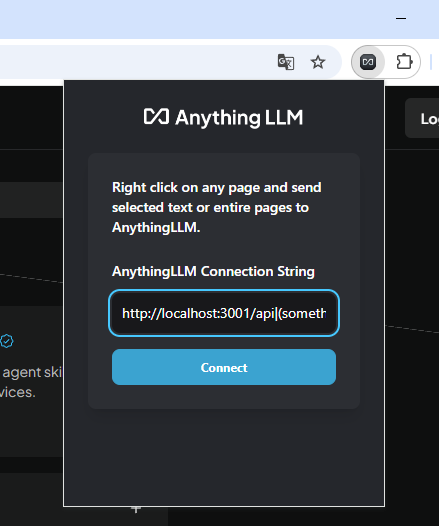
You don't add this string in the settings menu of Chrome; instead, you open the extension on a webpage, click on the 'AnythingLLM Browser Extension' and add the string to establish the connection. 
Then, you can right-click on a page, and if you send it to AnythingLLM, the page will be available as a document in the workspace documents menu (see below).
Remember that you still have to add it using 'Move to Workspace' and click on 'Save and Embed".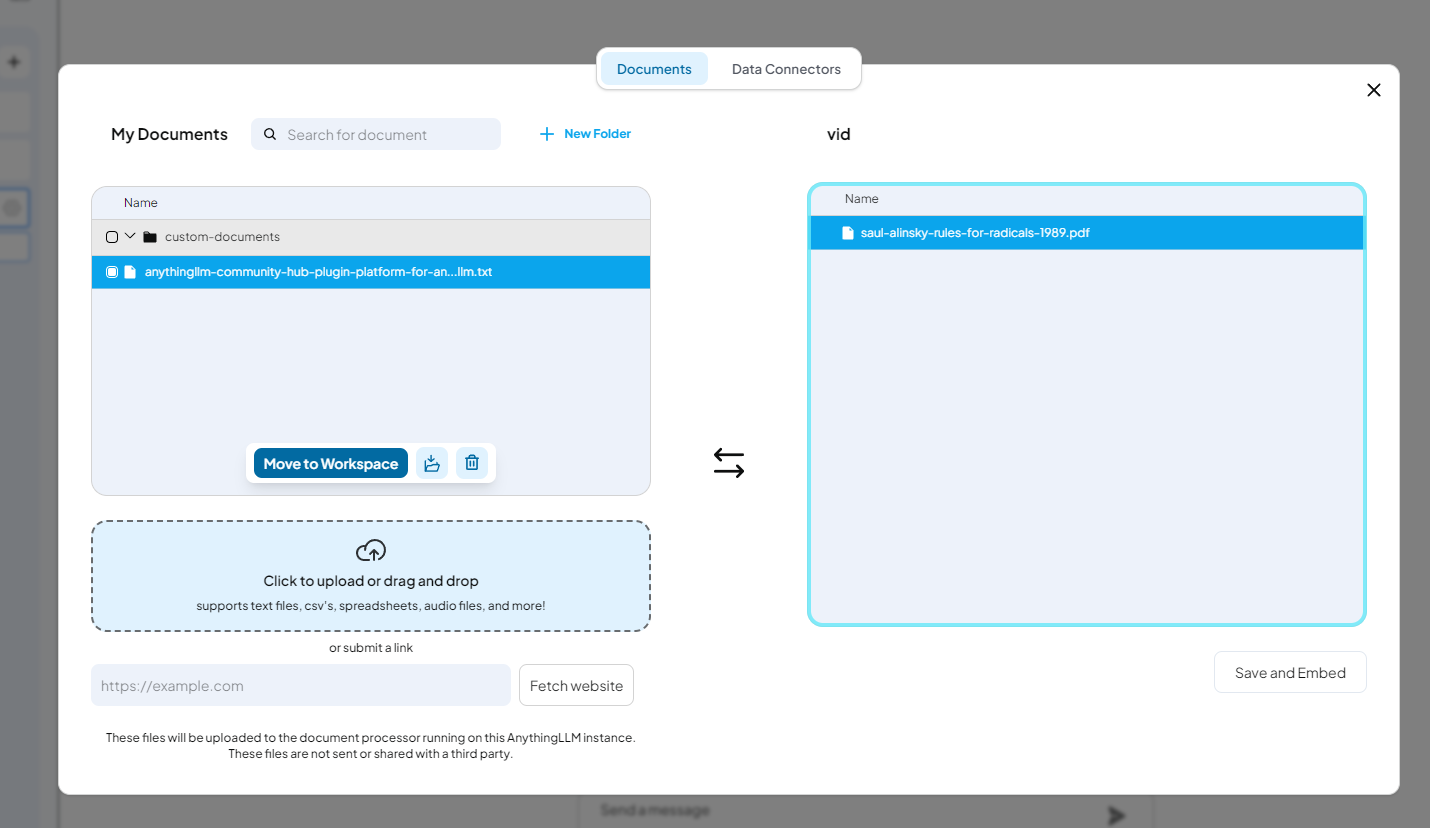
****
Bonus: Experimental features:
https://docs.anythingllm.com/beta-preview/enable-feature
"To enable feature previews in AnythingLLM in any form (Docker, Desktop, Hosted) open the settings page by clicking on the "wrench" icon on the left sidebar.
Next, press and hold the Command (Mac) or Control (Windows/Linux) key on your keyboard for 3 seconds. You should see an alert that Experimental Features have been enabled."
To go: GPT4All and LMStudio.