
Making summaries locally - Part #2A Texts: Introduction, Oobabooga, Ollama, OpenWebUI
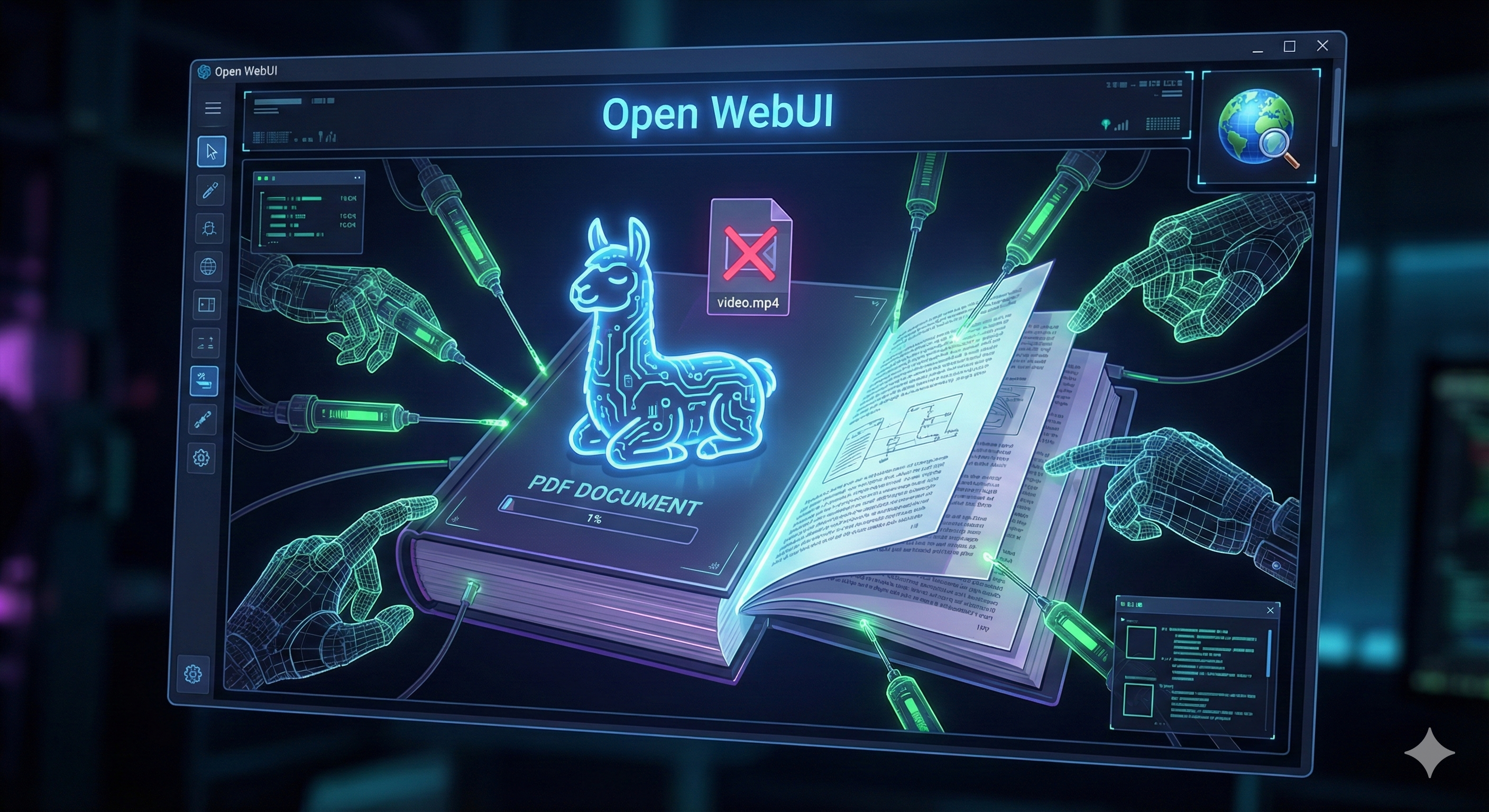
Making Text Summaries Offline Using a Local LLM
While you likely know that AI models can summarize text, you might not be aware that you can run them entirely on your local computer. The easiest way is to choose an LLM that fits within your system's memory.
Note that standard LLMs are limited to text-based summaries, whereas multimodal models like MiniCPM-V can also interpret video content.
If your source is a PDF, you will have to bridge the gap between the PDF content and the LLM, since the model can only read raw text.
More generally, you need an interface between content in any format you want to summarize and the input that your AI model accepts.
Then, to prevent the LLM from hallucinating, we must force it to use only the reference text we feed it, effectively ignoring everything else it knows.
A common principle used in this field is 'Retrieval-Augmented Generation' (RAG), which—as the name suggests—is based on combining retrieval with generation.
This raises a conceptual problem: if the reference text is unclear, should the LLM use its own knowledge to 'correct' the text and make it meaningful (risking hallucination), or should it strictly adhere to the unclear text (risking a failure to understand)?
[hint: You can control this trade-off by adjusting the model's temperature, effectively deciding whether it should strictly adhere to ambiguous text or risk hallucinations to make sense of it.]
Beyond the model and hardware, you need an interface to manage the process. You could build your own using Python, but as an interpreted language, it is slower than C++.
Alternatively, there are several ready-made interfaces available that you can use instead.
How can you query a local LLM model ?
While scripts often fetch models from Hugging Face, you can also run them offline from a local folder.
Another efficient method is to run a tool that creates a local server (like an API) which your scripts can query directly.
Two popular options for creating this kind of server are Oobabooga and Ollama.
Oobabooga
Oobabooga serves as both a local server and a user interface for querying LLMs. While it is possible to configure Oobabooga with extensions like Superbooga (which adds RAG capabilities) to generate summaries, the interface is often overkill for this specific purpose. Additionally, Oobabooga has faced criticism for not having a support for PDF or DOCX files, though its GitHub page indicates that this functionality has been implemented and is available.
Ollama
From my perspective, Ollama is easy to install and very transparent. On my screen, it appears simply as a small lama icon in the system tray (bottom-right).
To download a model, you first need to find its name on the Ollama website and then run the command: ollama pull [model_name]
in a command-line interface (CLI).
It is important to note that most models on Ollama are quantized by default. This explains why a model like Gemma 3 might be only 17GB on Ollama, while the full uncompressed version on Hugging Face is around 55GB.
OpenWebUI
(tested on v0.6.41)
OpenWebUI is a feature-rich interface for Ollama that includes native RAG support.
Unfortunately, the installation strictly requires Python 3.11 and will fail with other versions (December 17, 2025).
To solve this, I propose using Anaconda to provision the correct environment, as my systems's default Python versions (3.10 and 3.12, yeah!) are not supported.
Here are the commands that i used:
conda create -n openwebui python=3.11
conda activate openwebui
pip install open-webui
open-webui serve
(The latest command returned an error the first time, so I just did it again).
Then open here:
http://localhost:8080/
It asks you to create an admin password (save it) and you can then finally interogate the LLM model.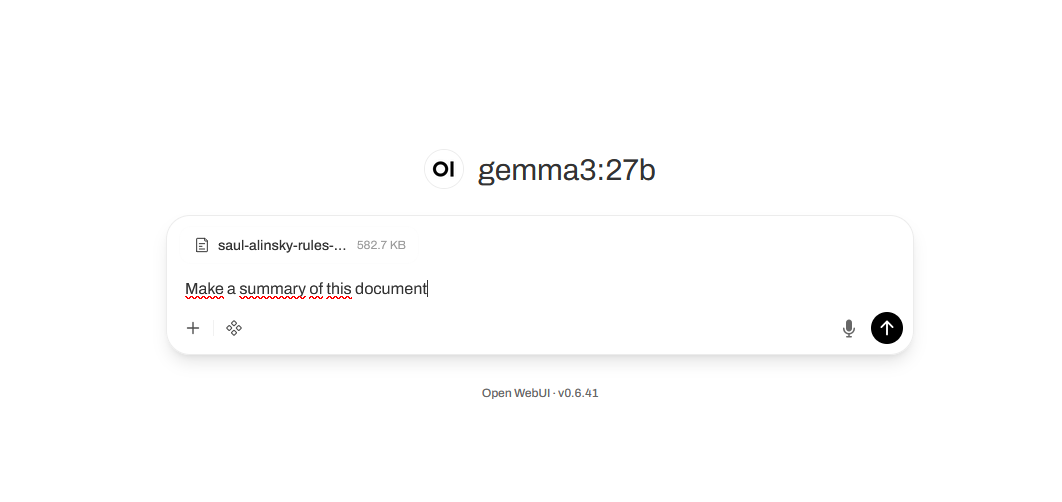
(Gemma3 27b handles texts and images)
In case you need to deactivate and delete the environment:
conda deactivate
To delete it:
conda remove --name openwebui --all
To check if it is gone:
conda env list
If you need to reset the password, while you installed OpenwebUI using Anaconda.
Do a :
conda env list
to check in what directory OpenWebUI is stored.
For me it was: D:\App\anaconda3\envs\openwebui
Then you need to look for a data folder that is related to OpenWebUI where there is a webui.db file.
For me it was (it is a custom directory, you won't have the same path):
D:\App\anaconda3\envs\openwebui\Lib\site-packages\open_webui\data
You need to delete the webui.db file to reset the password.
Script to run OpenWebUI in 1 or 2 clicks:
While I am it, if you create a bat file called "run_openwebUI.bat" and you put this content inside:
::
start "" "http://localhost:8080/"
call conda activate openwebui
open-webui serve
pause
::
If you run this bat file, it will start the browser, start the Anaconda environment, start OpenwebUI, then once OpenwebUI is started, if you reload the browser, OpenwebUI will be started. All of this, in 2 clicks.
Functionalities of OpenwebUI:
OpenwebUI can handle texts, pdf, audio files and pictures.
Since Ollama can provide a version of Minicpm-V that handles videos, you could try to use the interface on video files, but it doesn't work.
Since this article is about summaries, you may be disappointed with the short result that you get if you just ask for a summary.
So here are some tricks to get longer summaries:
Change this:
- increase Top_K: (Context Retrieval Limit): "How many pages should I read before answering?"
- increase max_tokens (the output limit): "How much are you allowed to talk?"
And finally, ask your model (i am using Gemma3) to create a better prompt for you, with this kind of intermediate prompt:
"I need to create a prompt for an AI model (gemma3) to make a summary; however, its output is too short and too concise.
I would like it to summarize to one-tenth of the length. That's 20 pages instead of 200. How would you ask for this?"
I guess you get the point.
If it is still not enough, use this:
***
"INSTRUCTIONS:
You are an expert analyst. Your task is to provide a comprehensive, detailed summary based strictly on the text chunks retrieved from the document.
RULES:
IGNORE METADATA: Do not summarize the Title Page, Copyright, Foreword, or Author's Biography.
DIVE DEEP: Focus entirely on the core arguments, methodologies, and technical details found in the content.
BE EXTENSIVE: Do not be concise. Do not give a high-level overview. I want a long, granular report.
STRUCTURE: Organize your response with clear headings for each major topic found in the text.
LENGTH: Your response should aim for at least 1000 words.
If the retrieved context only contains the Table of Contents or Introduction, explicitly state: "WARNING: I only have access to the introduction. Please increase your Top K setting or ask about a specific chapter."
Otherwise, begin the detailed report now:"
***
Finally, since I am speaking about OpenwebUI, this interface offers also the possibilities to do web searches, but it has to be enabled.
Personnally, i did this:
- I click on the icon that represents my user (upper left of the screen)
- I go to the admin panel.
- I go to the settings tab.
- I go to the "web search" menu.
- Web search enabled.
- Web search engine: DDGS (I think it means "duckduckgo search)
- I clicked on save
Then "New chat", select the "integration" icon, check "web search".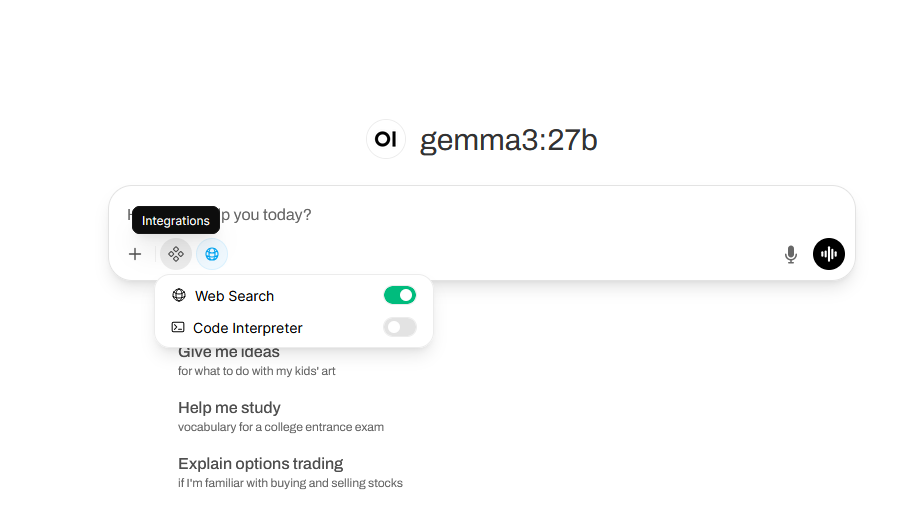
Then in your prompt, enter what you want to look for.
The text that it returns has links inside on which you can click: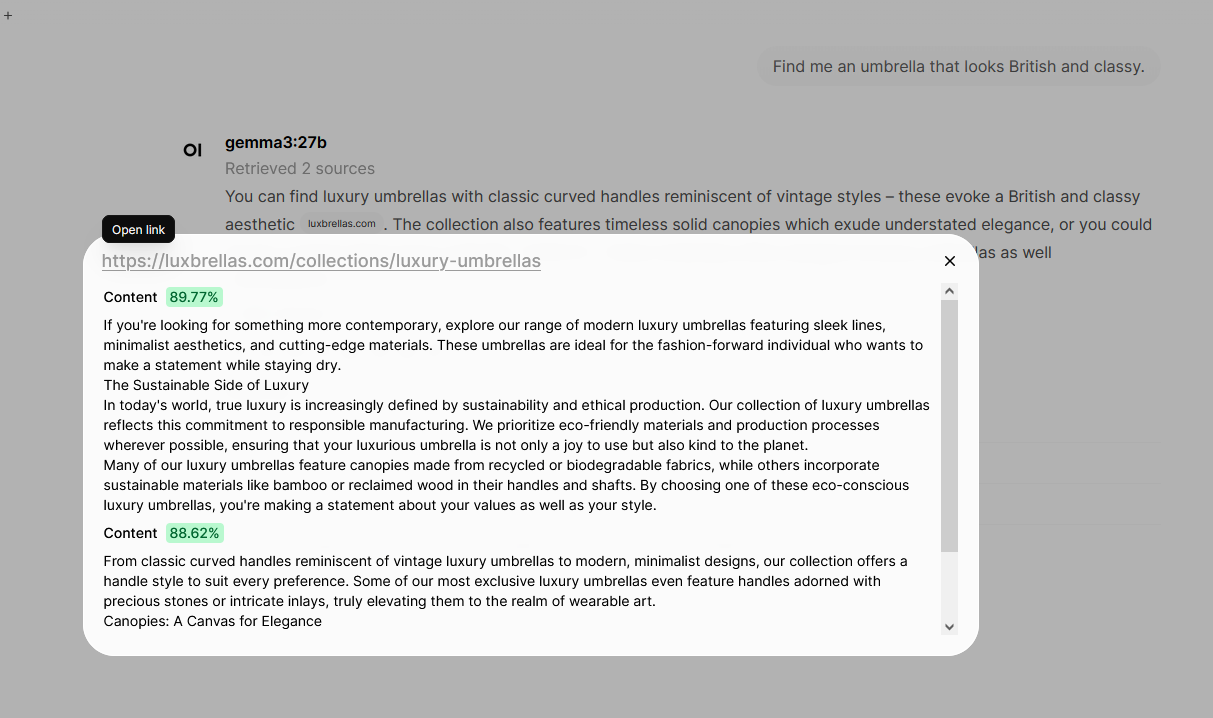
In the next part, I will describe the functionalities of AnythingLLM, GPT4All and LMStudio.